
How to Sync Field Submissions in VerusTrust Forms
To sync submissions from the field in VerusTrust Forms, open the Entries screen in the mobile app, tick the entries you want to send, and tap the sync icon in the top-right corner.
The app can also sync on its own as soon as the device is back online. Until an entry syncs, it stays on the device under Local Answers, where you can still open and correct it.
A part of the VerusTrust Forms Help Center, this guide covers both ways of syncing, then explains what happens to entries that haven’t synced yet.
Before You Start
Before attempting to sync your collected data, make sure you have the following:
- The VerusTrust Forms app, installed and signed in. See how to install the mobile app and collect data offline.
- A connection. Wi-Fi or mobile data both work. You can fill in and save forms with no signal, but sending them needs one.
Automatic or Manual Sync
The app has two sync options. Pick the one that fits how your team works.
- Automatic sync sends entries as soon as the device is back online. Choose it when nobody should have to remember to sync, for example crews who come back into range at the end of every shift.
- Manual sync keeps entries on the device until someone sends them. Choose it when entries should be checked before they leave the device, or when crews need to wait for Wi-Fi to save mobile data.
The rest of this guide walks through manual sync. With automatic sync turned on, the app does Steps 3 and 4 for you, but the Entries screen still shows anything that’s waiting.
Step 1: Open the Entries Screen
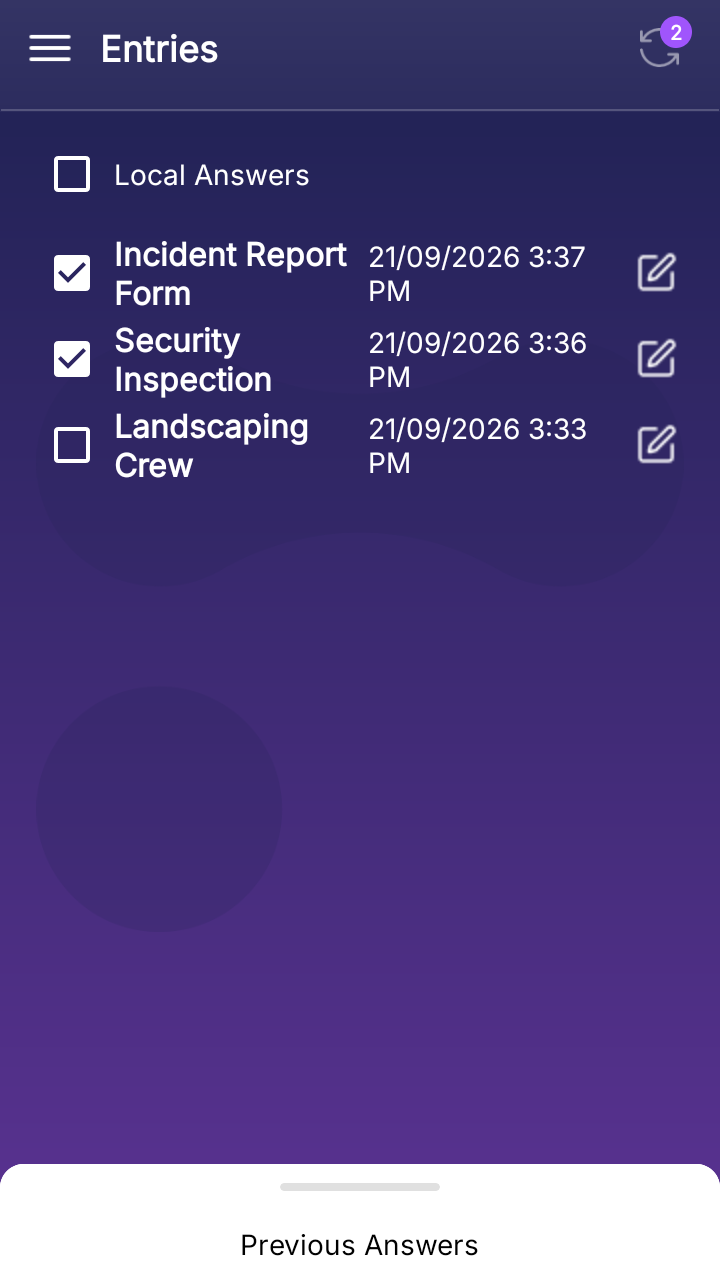
In the mobile app, open the menu in the top-left corner and select Entries. The Local Answers list shows every entry saved on the device that hasn’t synced yet, with the form’s name and the date and time it was saved.
Step 2: Check Entries Before They Leave the Device
Tap the edit icon next to an entry to open it and correct anything that’s wrong or missing. Save it, and it goes back into the list. Correct anything now, while the entry is still on the device and you’re still close to where you captured it.
Step 3: Choose Which Entries to Sync
Tick the box next to each entry you want to send. To select every entry at once, tick Local Answers at the top of the list.
The number on the sync icon shows how many entries you’ve selected. Entries you leave unticked stay on the device until you sync them later.
Step 4: Tap the Sync Icon
Tap the sync icon in the top-right corner. The selected entries upload as soon as the device has a connection. Once they’ve synced, they appear on the web: on the Home page under Most Recent Entries, and under Entries next to each form on the Forms page.
Swipe up on Previous Answers at the bottom of the screen to see entries that have already been sent from this device.
What Happens to Entries That Haven't Synced
VerusTrust Forms has been designed to prevent data loss, even in case of a failed sync.
Here is what happens to your entries that haven’t synced yet:
- They stay on the device, in the Local Answers list, until they sync. Closing the app doesn’t remove them.
- Nobody else can see them yet. They don’t reach the web, your reports or your exports until they sync.
- You can still correct them with the edit icon.
- They exist only on that phone or tablet. If the device is lost, broken, reset, or the app is uninstalled before they sync, those entries go with it. Sync whenever you have a signal, even if you plan to keep working.
What to Do If an Entry Doesn't Sync
In case you cannot sync your collected data, make sure to:
- Check the connection. Open a web page on the device. If nothing loads, wait until you’re back in range.
- Try again. Entries that didn’t get sent stay in Local Answers, so tick them and tap the sync icon again.
- Check you’re still signed in to the app with your VerusTrust Forms account.
- Update the app from the App Store or Google Play if an update is waiting.
What to Do Next
Already figured out how to sync your data with VerusTrust Forms?
Try these next:
- Turn on blockchain verification so the records you sync carry proof they haven’t changed.
- Export your data once your entries are in.
Frequently Asked Questions
Can I sync only some of my entries?
Yes. Choose Manual Sync and tick only the entries you want to send and tap the sync icon. The rest stay in Local Answers until you sync them.
Do I need Wi-Fi to sync?
No. Any connection works, Wi-Fi or mobile data. If your crew needs to save mobile data, use manual sync and send entries once they’re on Wi-Fi.
Can the app sync automatically?
Yes. With automatic sync, the app sends entries as soon as the device is back online. With manual sync, entries wait on the device until you send them.
Is there a limit to how many entries I can sync?
Each plan includes a set number of form answers per month. If you go over, your forms keep working and you’ll see a prompt to upgrade.
If you haven’t set up your account yet, start on the Free plan and sync your first entries from the field today.