
How to Install the VerusTrust Forms Mobile App and Collect Data Offline
To collect data offline with VerusTrust Forms, install the free VerusTrust Forms app from the App Store or Google Play, sign in with your VerusTrust Forms account, and open the app once while you have a connection so your forms are stored on the device.
After that, you can fill in forms, take photos, capture GPS locations and collect signatures with no signal at all. Every entry stays on the device until it syncs, automatically or when you choose, depending on how you set the app.
A part of the VerusTrust Forms Help Center, this guide covers installing the app, getting your forms onto it, and working offline in the field.
Before You Start
This is what you need before you begin the installation process:
- An iPhone, or an Android phone or tablet running Android 6.0 or later. The app is on the App Store and Google Play.
- An active VerusTrust Forms account. The app doesn’t work on its own. If you’re setting up a field crew, invite each person and give them a role that lets them fill in forms first.
- At least one form. If your account doesn’t have one yet, build your first form on the web.
- Room in your plan’s device limit. Each plan includes a set number of devices, and the Free plan includes three. Users are unlimited on every plan.
Step 1: Find the App
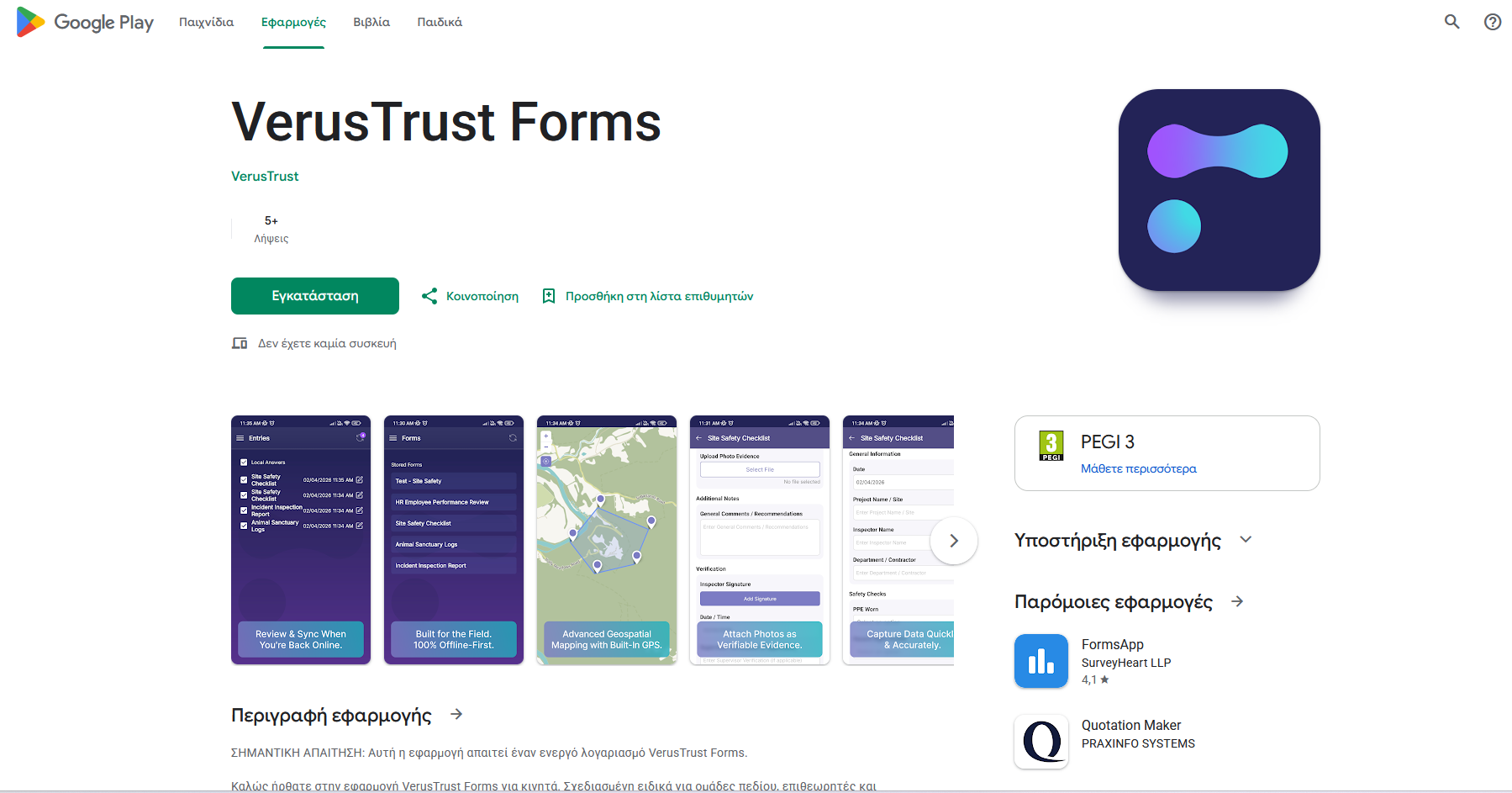
In the VerusTrust Forms web app, select Install App in the top bar to go to the app’s download page. On the phone itself, open the App Store (iPhone) or Google Play (Android) and search for “VerusTrust Forms”. Android users can also go straight to the VerusTrust Forms listing on Google Play. Whichever store you use, check that the publisher is shown as VerusTrust.

Step 2: Install It
Select Get on the App Store or Install on Google Play. The app is free to download. If you opened the Google Play listing on a computer, choose the phone or tablet you want to install it on.
Step 3: Sign In
Open the app and sign in with the same email address and password you use on the web. If you don’t have an account yet, create one first, or ask the person who manages your team’s account to invite you.
Step 4: Get Your Forms onto the Device
Do this while you still have a connection, before you head somewhere without signal.
- Open the Forms screen. It lists your stored forms, the ones saved on the device and ready to use offline.
- Refresh the list to pick up any forms that were added or changed on the web since you last opened the app.
- Open each form you’ll need once to check it’s there and looks right.
If someone edits a form on the web while you’re out of signal, your device keeps the version it stored. Refresh again the next time you’re connected.
Step 5: Fill In Forms Offline
Open a form from the Forms screen and fill it in as you would online. Everything a form can capture works without a connection:
- Photos and files you attach to the entry.
- GPS points, lines and areas drawn on the map. See how to capture location with points, lines, and polygons.
- Signatures collected on the screen.
- Required fields and validation rules, which check every answer offline just as they do online.
When you save the entry, the app stores it on the device. It doesn’t need a signal to save, and it doesn’t lose the entry if you close the app.
Step 6: Review and Sync When You're Back Online
Saved entries wait on the Entries screen until they sync. The app has two sync options:
- Automatic: entries sync on their own as soon as the device is back online. Nobody has to remember to do it.
- Manual: entries stay on the device until you sync them yourself. You get a chance to open and correct an entry before it leaves the device.
Either way, synced entries reach the submissions dashboard on the web. How to sync submissions from the field covers both options step by step, including what happens to entries that haven’t synced yet.
Tips for Working Offline
- Refresh before you leave. The last connected moment is your last chance to get updated forms onto the device.
- Sync before you uninstall, reset or hand over a device. Unsynced entries exist only on that phone or tablet.
- Charge up for long shifts. GPS and the camera use the most battery, so carry a power bank if you’ll be out all day.
- Keep the app updated. Install updates from the App Store or Google Play when you’re on Wi-Fi.
What to Do Next
- Capture location: points, lines and polygons for forms that record where something is.
- Sync submissions from the field once you’re back in range.
- Turn on blockchain verification so your field records carry proof they haven’t changed.
Frequently Asked Questions
Does the VerusTrust Forms app work with no internet at all?
Yes. Once your forms are stored on the device, you can fill them in, attach photos, capture GPS locations and collect signatures with no signal. You only need a connection to sign in, refresh your forms and sync your entries.
Do I need a separate account for the mobile app?
No. The app uses your VerusTrust Forms account. Sign in with the same email address and password you use on the web.
Which phones does the app run on?
iPhones, and Android phones and tablets running Android 6.0 or later. Get it from the App Store or Google Play.
Can the app sync my entries automatically?
Yes. The app can sync automatically as soon as the device is back online, or wait for you to sync manually. Manual sync lets you review and correct entries before they leave the device.
What happens to my entries if I lose signal halfway through a form?
Nothing. The app doesn’t need a signal to fill in or save a form, so you carry on as normal. The entry waits on the device until it syncs.
Does the mobile app cost extra?
No. The app is free to download, and offline data collection is included on every plan, including the Free one. If you haven’t set up your account yet, start on the Free plan, build a form on the web, and you can be filling it in on your phone within the hour.