
How to Export Your Data from VerusTrust Forms
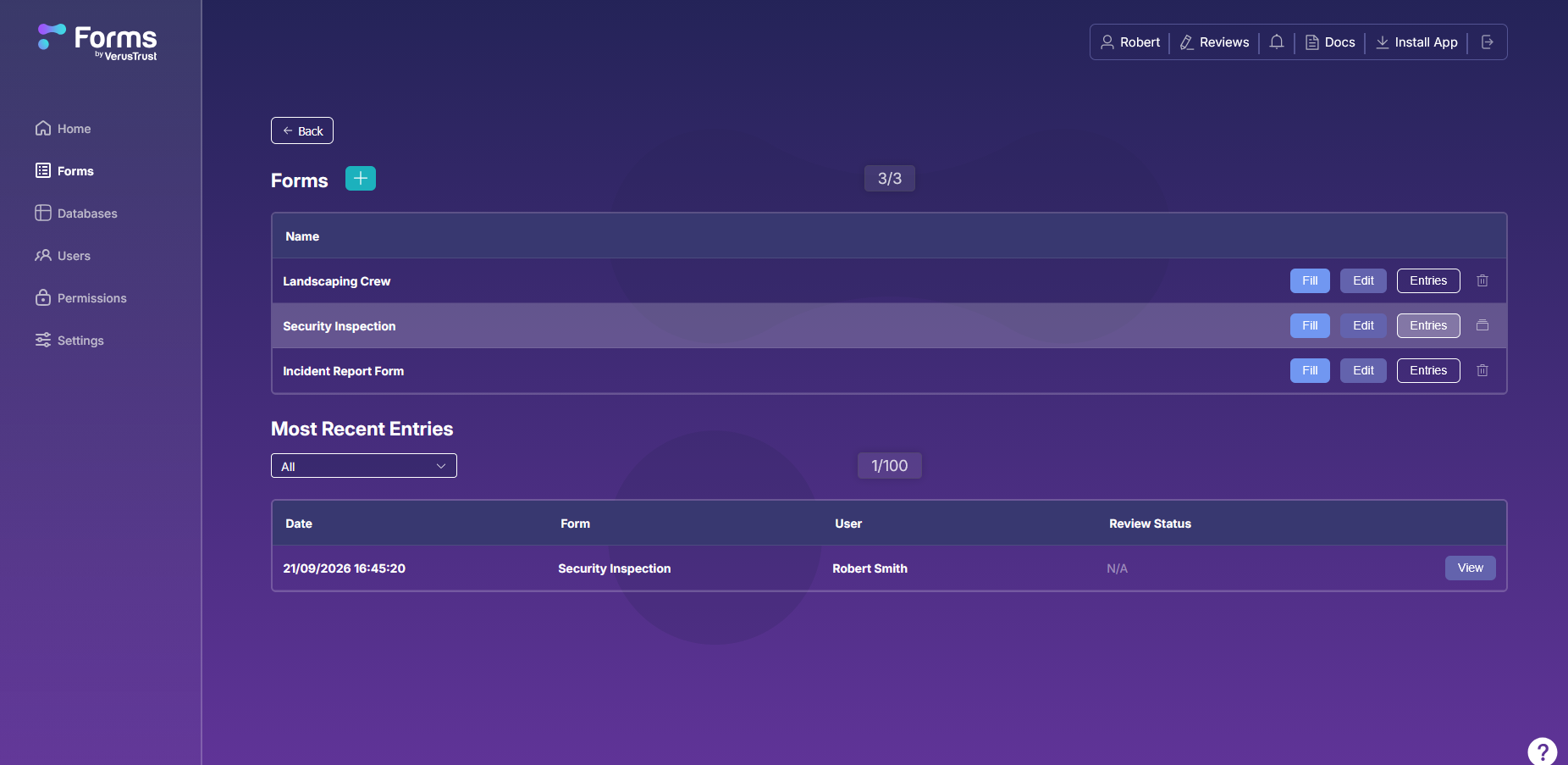
To export your data from VerusTrust Forms, go to Forms, select Entries next to the form you want, and select Export. Before you export, you can narrow the list by date, search for specific answers, and choose which columns to show.
Exports work on every plan, so your data is never locked in: take it into Excel or Google Sheets for a monthly report, into Power BI or Tableau for analysis, or into an audit pack.
A part of the VerusTrust Forms Help Center, this guide covers opening a form’s entries, filtering them, and exporting.
Before You Start
Before exporting your data:
- Make sure your entries have synced. Entries still waiting on a phone or tablet won’t be in the export. See how to sync submissions from the field.
- Check your permissions. You need access to the form’s entries. See how to invite users and set roles and permissions.
Step 1: Open the Form's Entries
Go to Forms in the sidebar and select Entries next to the form you want to export. The Entries page opens, listing every entry submitted through that form.
Step 2: Narrow Down the Entries
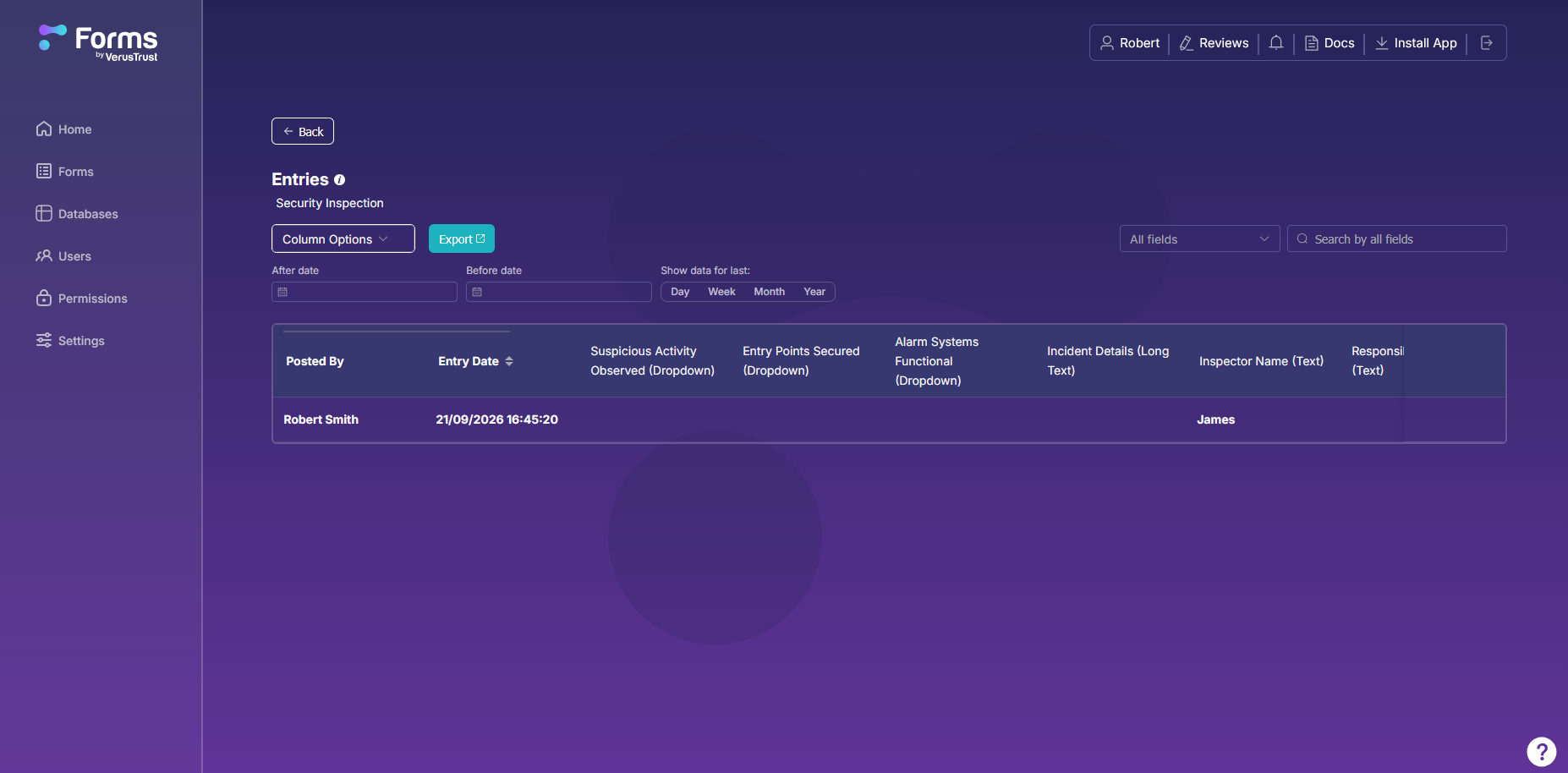
Skip this step to work with every entry. To focus on part of the data, use the controls above the table:
- After date and Before date: show only entries submitted within a date range.
- Show data for last: pick Day, Week, Month or Year for a quick range ending today.
- Search by all fields: find entries containing a word or value. Use the All fields dropdown next to it to search one field only, such as an inspector’s name.
- Column Options: choose which columns the table shows.
- Entry Date: select the column heading to sort entries by date.
Each row in the table is one entry. The first columns show who posted it and when, and every field on the form has its own column, labeled with the field type.
Tips for Cleaner Exports
If you want your exports to be cleaner and the data easier to parse, there are a few best practices you should keep in mind, even when building forms.
- Name fields clearly when you build the form. Field names become the column headings, so “Inspector Name” exports better than “Name 1”.
- Use dropdowns where answers repeat. Set options produce consistent values that sort, filter and count cleanly in a spreadsheet.
- Export by date range for recurring reports. A Month filter each month keeps reports consistent and easy to compare.
What to Do Next
If you’ve already figured out how to export your data, here’s what you should consider doing next:
- Turn on blockchain verification so the records you export can be proven unchanged.
- Add advanced field types such as dropdowns and tables to make your data easier to work with.
Frequently Asked Questions
What format does VerusTrust Forms export to?
CSV or Excel. Both open in Excel, Google Sheets and other spreadsheet tools, and load into Power BI and Tableau.
Can I export only some of my entries?
Yes. Use the date filters, the Day, Week, Month and Year shortcuts, or the field search on the Entries page to narrow the list before you export.
Can I export all my forms at once?
Exports run one form at a time, from each form’s Entries page. Repeat the steps for each form you need.
Can I export my data on the Free plan?
Yes. Exporting is included on every plan, including Free, and you can export whenever you like, so your data is never locked in.
If you haven’t signed up yet, start on the Free plan and your first export is a few clicks away.