
How to Verify a Record That Has Been Challenged in VerusTrust Forms
When someone disputes a record in VerusTrust Forms, such as an inspection result a contractor says is wrong, you can prove the record hasn’t changed since it was submitted. Open the entry with View, select See Blockchain Verification, and check that the state shows Verified.
The verification page shows when the record’s fingerprint was recorded on the blockchain, which network holds it, and the hashes that identify it. You can then share that proof as a PDF receipt, a verification link, or a link to the transaction on a public blockchain explorer.
A part of the VerusTrust Forms Help Center, this guide walks through each step, explains what the details mean, and covers what the proof does and doesn’t show.
Before You Start
Before verifying a record, make sure that:
- The form had blockchain verification switched on when the entry was submitted. If it didn’t, there’s no blockchain proof to check. See how to turn on blockchain verification for a form.
- The entry has synced. Entries collected offline are only anchored once they reach VerusTrust Forms. See how to sync submissions from the field.
- You can view entries. Your role needs View Entries set to Allow.
Step 1: Find the Entry
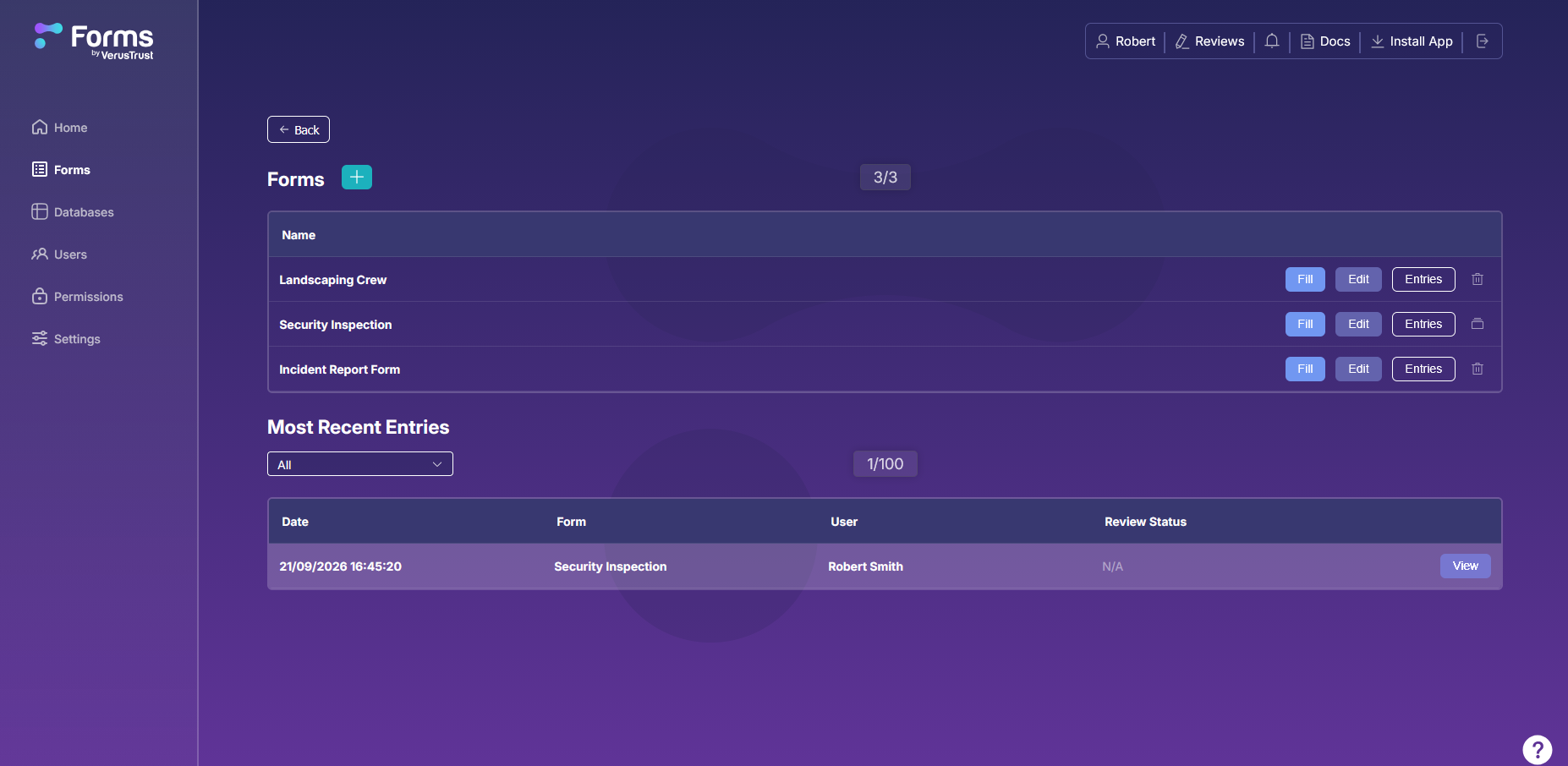
Go to Forms in the sidebar. Under Most Recent Entries, find the entry that’s being questioned. Each row shows the date and time it was submitted, the form, and the user who submitted it. Use the dropdown above the list to show entries from one form only. Select View next to the entry.
For older entries, select Entries next to the form in the Forms list to see everything submitted through it.
Step 2: Open the Blockchain Verification
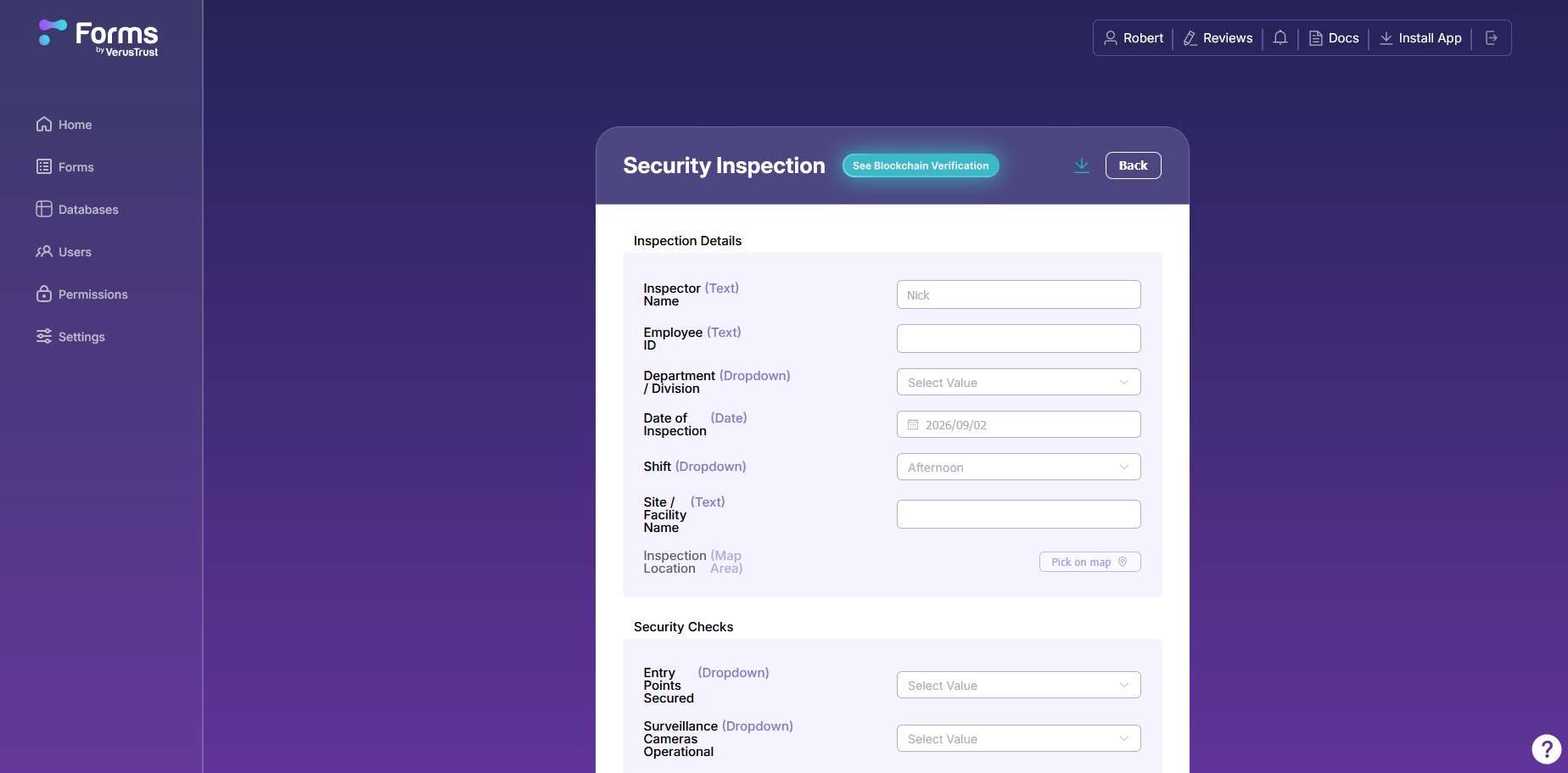
The entry opens with every answer as it was submitted. Select See Blockchain Verification next to the form’s name at the top.
Step 3: Read the Verification Details
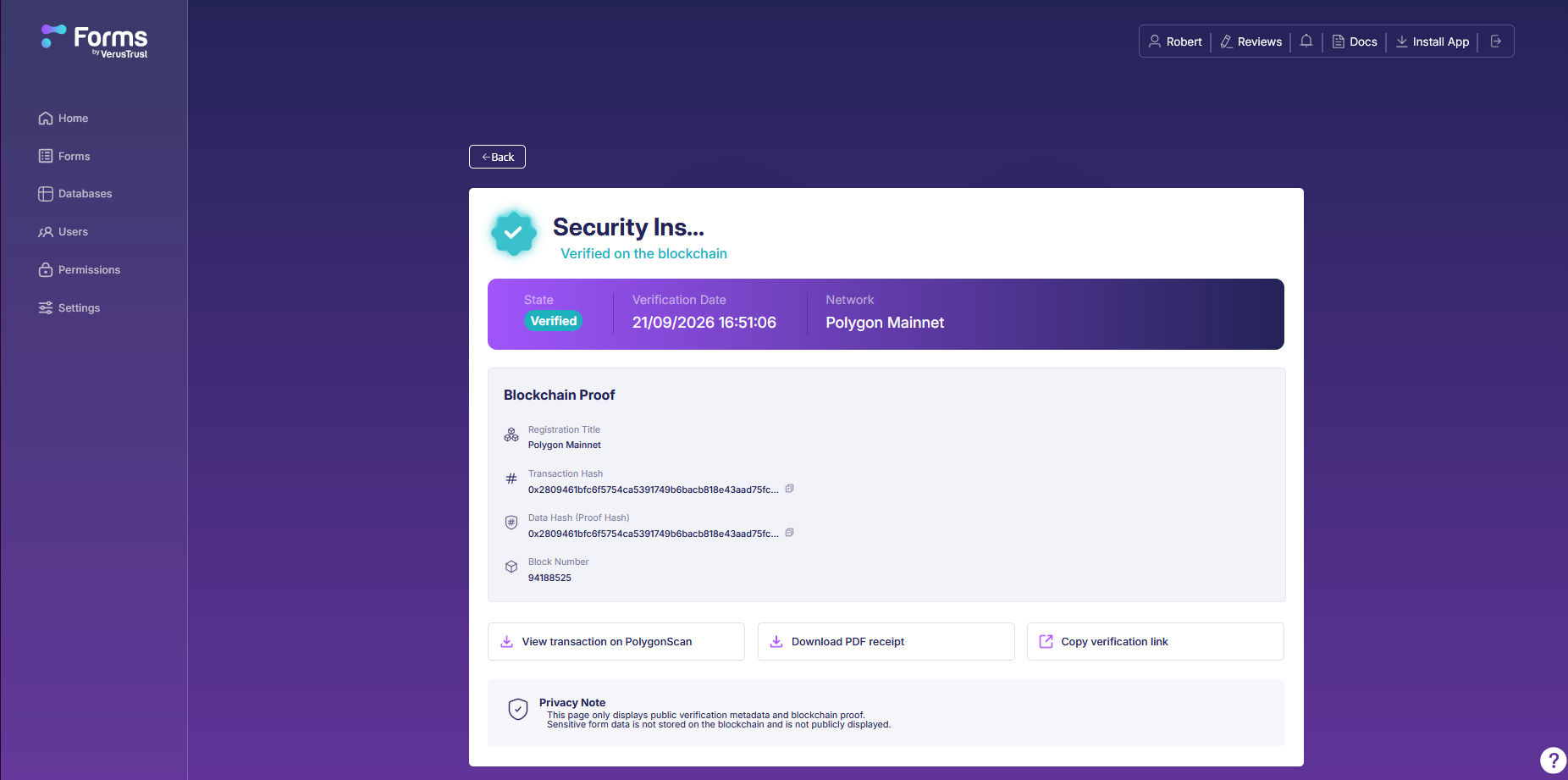
The verification page confirms the record is Verified on the blockchain and lists the proof behind it.
| Detail | What it tells you |
|---|---|
|
State |
Whether the record checks out. Verified means it matches the fingerprint recorded on the blockchain.
|
|
Verification Date
|
When the record’s fingerprint was recorded on the blockchain.
|
|
Network |
The blockchain that holds the proof. VerusTrust Forms uses Polygon Mainnet, a public blockchain.
|
|
Transaction Hash
|
The ID of the blockchain transaction that recorded the fingerprint. Anyone can look it up.
|
|
Data Hash (Proof Hash)
|
The record’s fingerprint, generated from the submitted data.
|
|
Block Number |
The block on the blockchain that contains the transaction. |
Use the copy icon next to a hash to copy the full value.
Step 4: Share the Proof
The bottom of the verification page gives you three ways to show the proof to someone else:
- Download PDF receipt: a file you can attach to an email, add to an audit pack, or keep with the dispute paperwork.
- Copy verification link: a link to the verification page that you can send to the person challenging the record. The page shows only verification details, never the record’s contents.
- View transaction on PolygonScan: opens the transaction on PolygonScan, a public blockchain explorer. Anyone can use it to see that the transaction exists and when it was recorded, without relying on VerusTrust Forms or on you.
What the Proof Covers
The proof shows that the record hasn’t changed since its Verification Date. If anyone had changed it afterward, even by one character, it would no longer match the fingerprint on the blockchain.
It also fixes a point in time: a record anchored weeks before a dispute started can’t have been written to suit the dispute.
The proof has a limit, and it’s worth being upfront about it. It can’t show that what was entered was correct in the first place. If the challenge is about accuracy, back the record up with what else it holds: who submitted it, its photos and attachments, and its map location.
Responding to a Dispute: A Checklist
In case of a dispute, these are the steps you should follow:
- 1. Identify the exact entry from its date, time, form and submitting user.
- 2. Open its blockchain verification and confirm the state is Verified.
- 3. Download the PDF receipt and keep it with the dispute records.
- 4. Send the other party the verification link or the PolygonScan link.
- 5. Point out the Verification Date, especially if it’s earlier than the date the dispute was raised.
If the Record Doesn't Show as Verified
If a record does not show as verified, make sure to:
- Check the form’s settings. If “Supports Blockchain Entries” was off when the entry was submitted, the entry has no blockchain proof.
- Check the entry has synced. An entry still sitting on a phone hasn’t been anchored yet.
- Give a new entry a few minutes. Anchoring a record on the blockchain isn’t instant, so a just-submitted entry may not show as verified straight away.
What to Do Next
We’ve covered what happens in case a record is challenged. Here’s what to do next:
- Turn on blockchain verification for every form whose records could be disputed.
- Export your data when you need the full records alongside the proof.
Frequently Asked Questions
Which blockchain does VerusTrust Forms use?
Polygon Mainnet, a public blockchain. Each verified record’s fingerprint is recorded there in a transaction anyone can look up on PolygonScan.
Does the verification page show what's in the record?
No. It shows only public verification details: the state, the date, the network and the hashes. The record’s contents are never stored on the blockchain or shown on the verification page.
Can the person disputing the record check the proof themselves?
Yes. Send them the PolygonScan link and they can see the transaction on a public blockchain explorer, independent of VerusTrust Forms. You can also send the PDF receipt or the verification link.
Can a verified record be changed without anyone knowing?
No. Any change after the record was anchored would no longer match its fingerprint on the blockchain. That’s what makes a verified record tamper-evident.
Is blockchain verification available on the Free plan?
Yes. Blockchain verification is available on every plan, including the free-forever one. If you haven’t signed up yet, start on the Free plan and switch it on for the forms whose records need to hold up.